
The classroom management tools behind the lesson.
Ripplet Classroom is where the day-to-day running of a class happens: setting up the class and roster in Class Settings, taking attendance, building teams, arranging seats, running shared group work, sharing class materials, and scoring a custom student self-assessment. These are classroom management tools rather than instructional content — they organize the room and the roster so the instructional tools on Features have something solid to run on.
Set up the class, show the roster, and edit members
Class Settings is where teachers create and tune a class, choose and order the tiles on the student Home Screen, review the approved roster with Show, and open the edit-member modal to update a student without leaving the class tools.
Every tool, one tap away
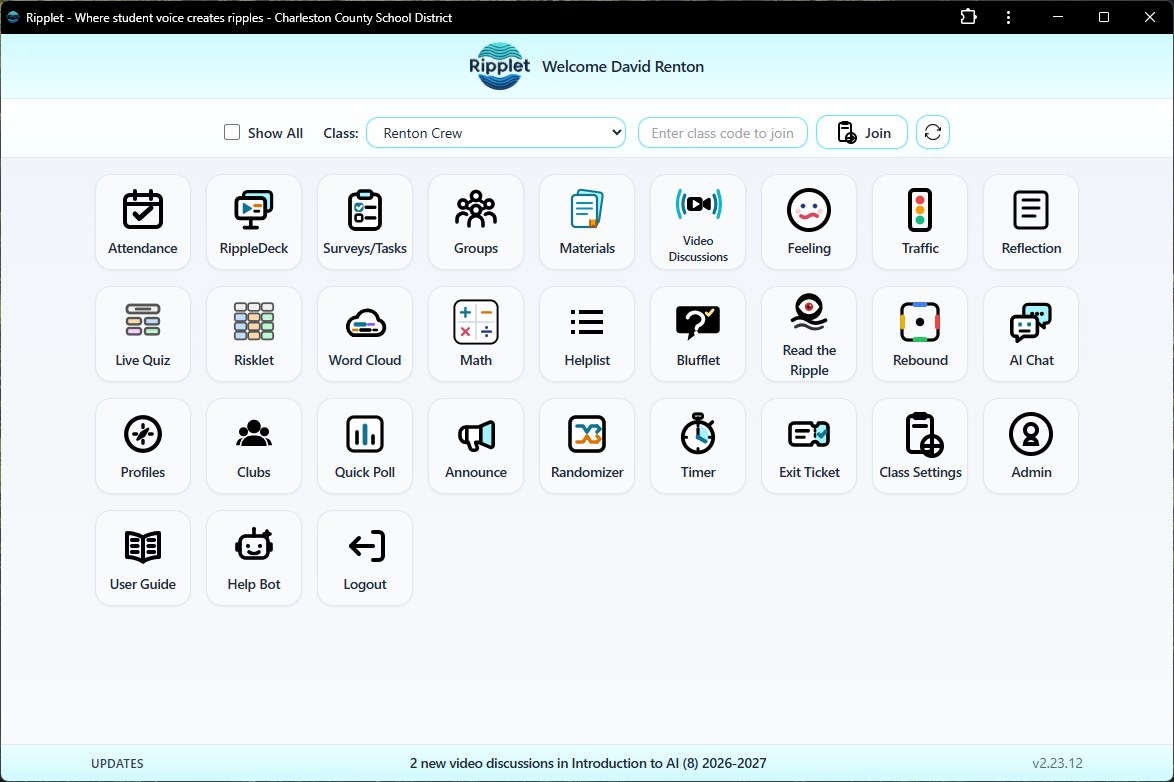
The Home Screen is where every class starts: pick a class, join a new one with a class code, and open any tool from its tile. A status bar along the bottom surfaces updates such as new video discussions waiting in a class.
Choose and reorder the student tiles
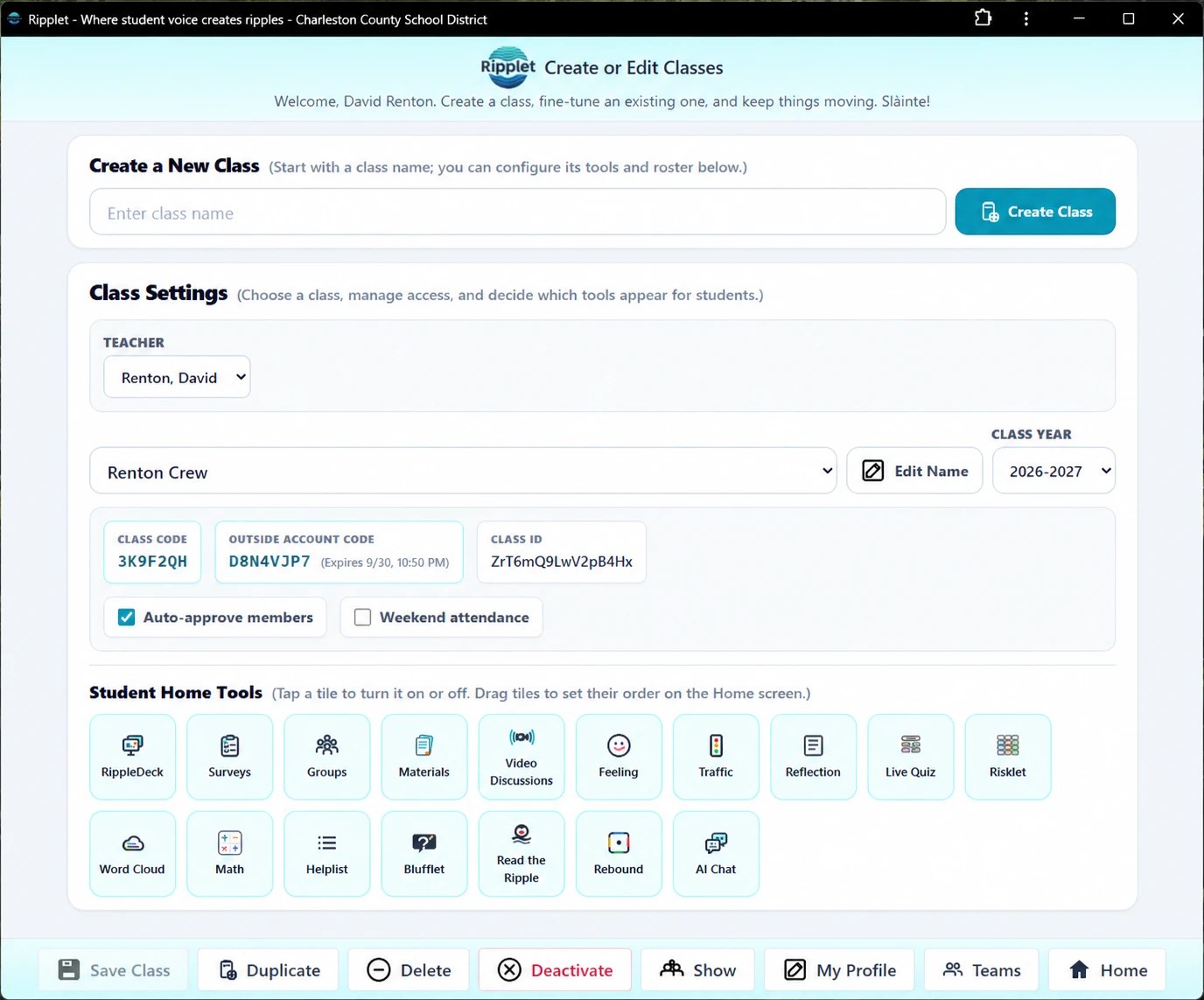
In Class Settings, teachers tap a tile to turn that tool on or off for the class, then drag tiles into the order they should appear on the student Home Screen, so the tools used most each day sit at the front.
Create and tune the class
Teachers set the class name, code, school year, auto-approve and weekend attendance options, and use Student Home Tools to tap tiles on or off and drag them into the order students see on their Home Screen.
Show the class list
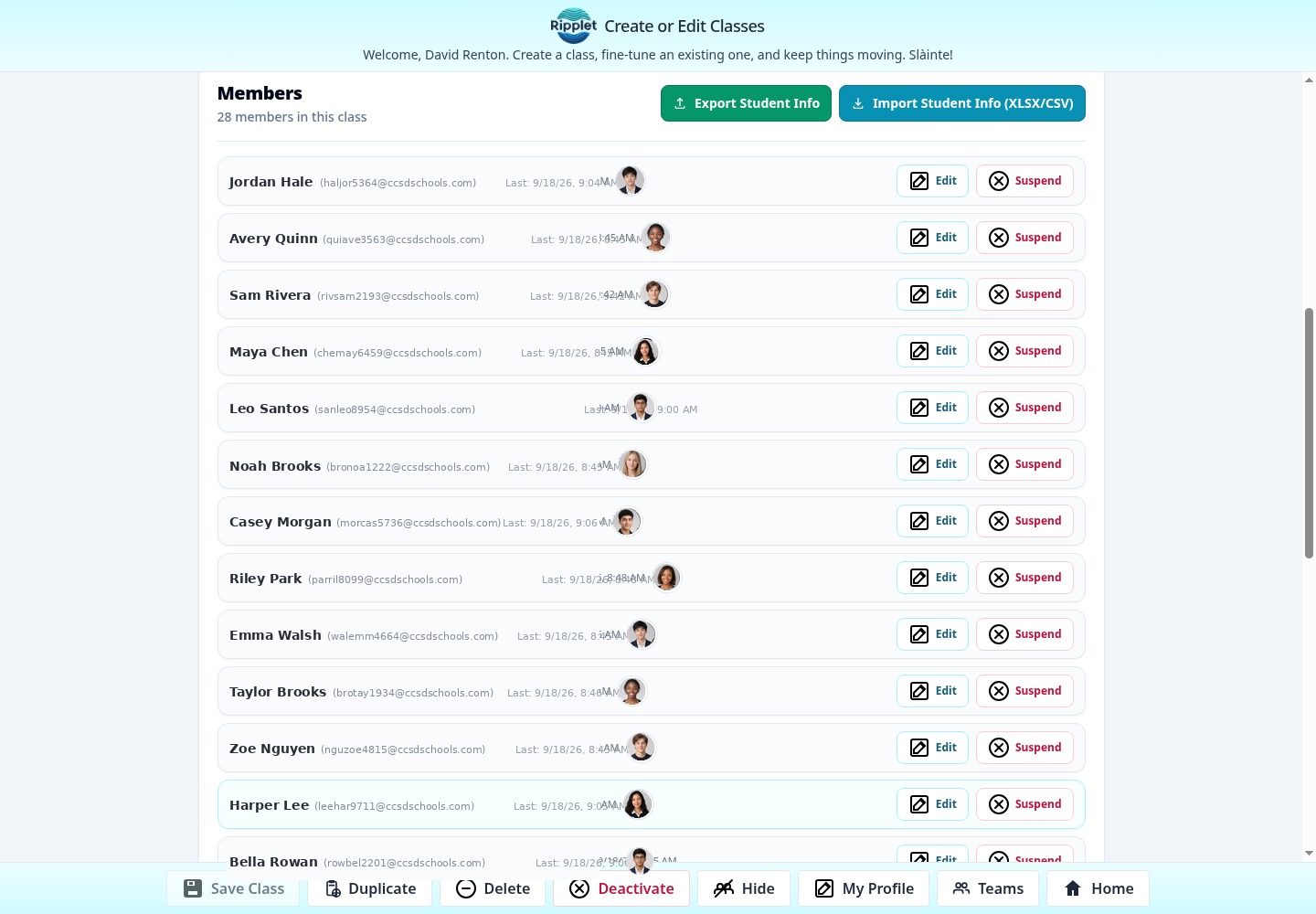
Show opens the full approved roster for the class so teachers can scan membership, export or import members, and jump into edits without guessing who is enrolled.
Edit a student in place
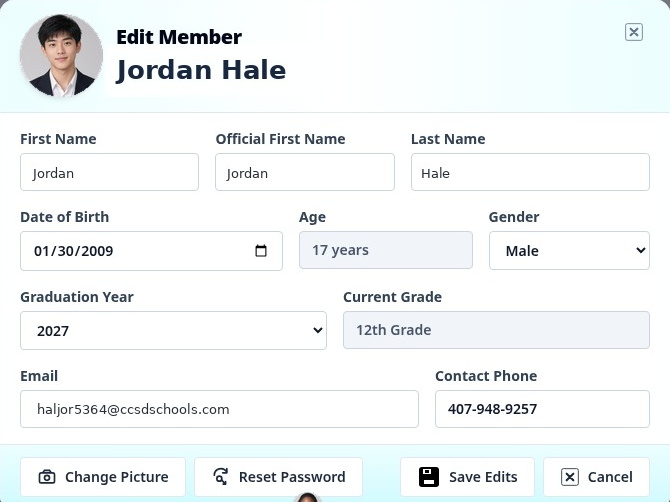
From the roster, teachers open the edit-member modal to update that student's details and membership actions without leaving Class Settings.
Daily attendance with a log, photos, and exportable reports
Attendance lives inside Class Settings, with tools for marking the day, capturing context beyond present or absent, and exporting records for a chosen date range.
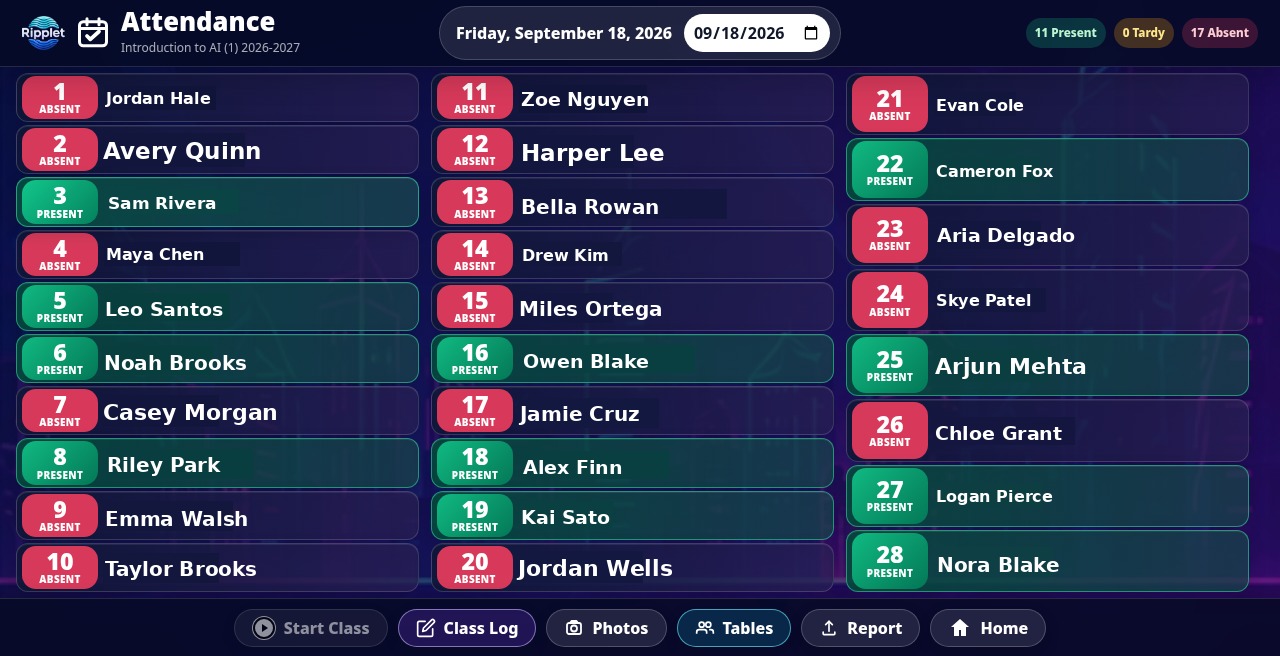
Present, tardy, absent
Teachers mark every student present, tardy, or absent for the day, with live present/tardy/absent counts and a one-tap toggle to correct a mark at a glance.
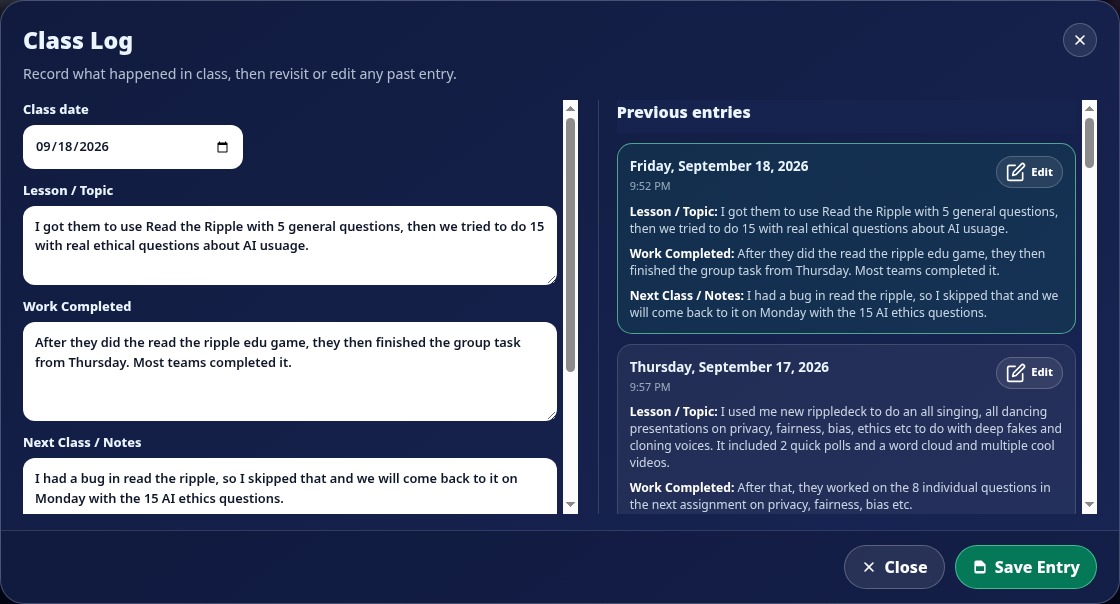
A record of what actually happened
Alongside attendance, teachers can log the day's lesson topic, notes on completed work, and reminders for next class, and copy that same log entry to other classes taught the same day.
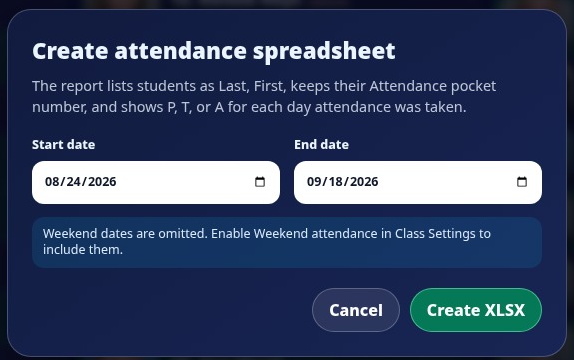
Photos and exportable reports
A Photos toggle shows student profile photos on the attendance tiles for faster, more accurate marking. Reports export attendance for a chosen date range as a spreadsheet teachers or admins can use outside Ripplet.
Build teams once, use them everywhere
Teams live in Class Settings and feed directly into Groups and Surveys/Tasks, so a roster built once carries through group work all year.
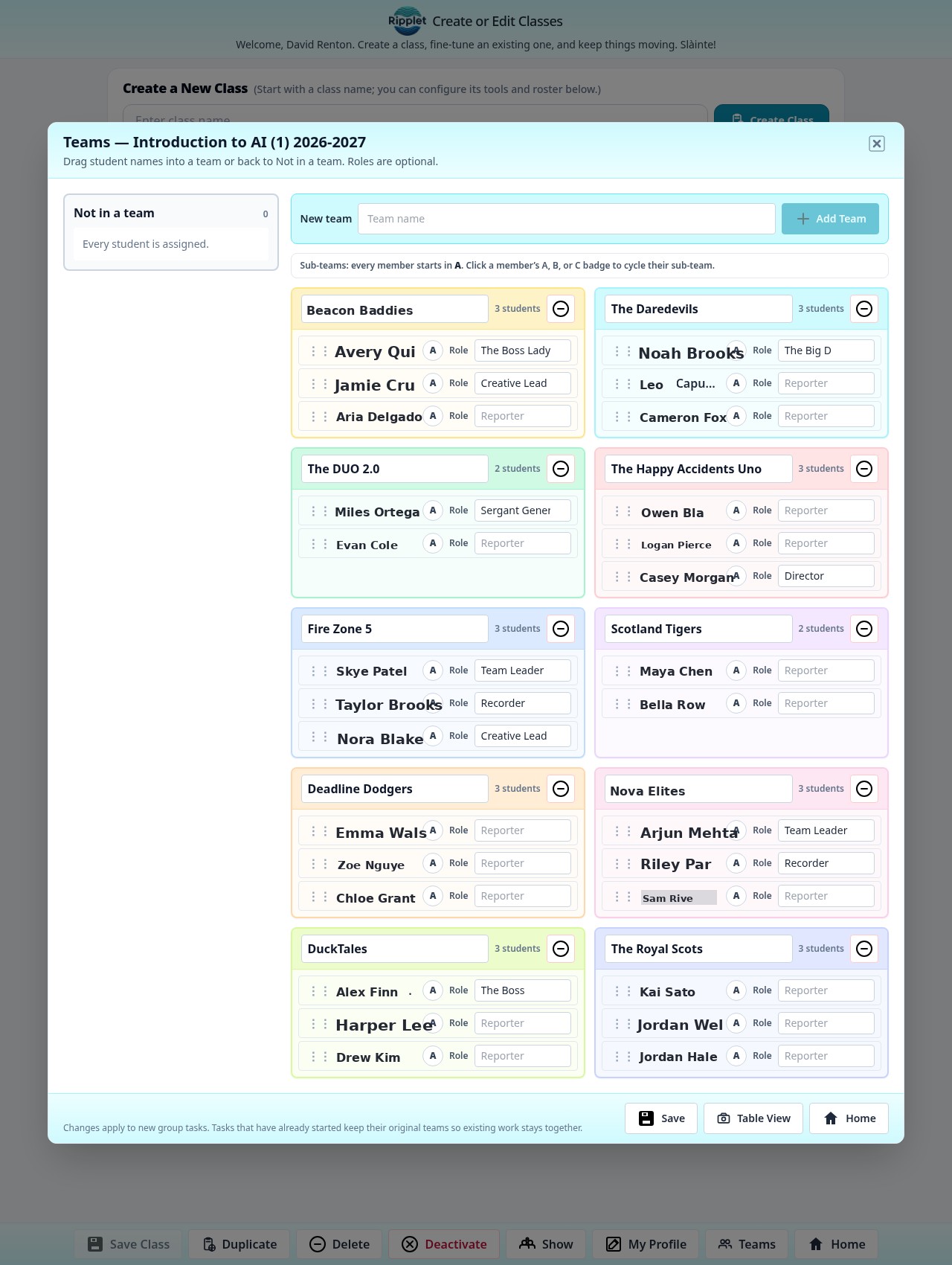
Drag-and-drop teams and sub-teams
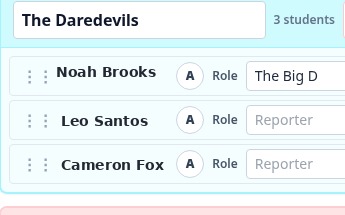
Teachers drag students into named teams, or leave anyone unassigned. Every member starts in sub-team A, and a click cycles them through A, B, or C whenever a team needs to split into smaller working units.
Optional, freeform roles
Each team member can be given an optional role in their own words, from "Reporter" to whatever a class invents, so roles are captured on the roster without being forced into a fixed list.
A seating chart that matches your teams
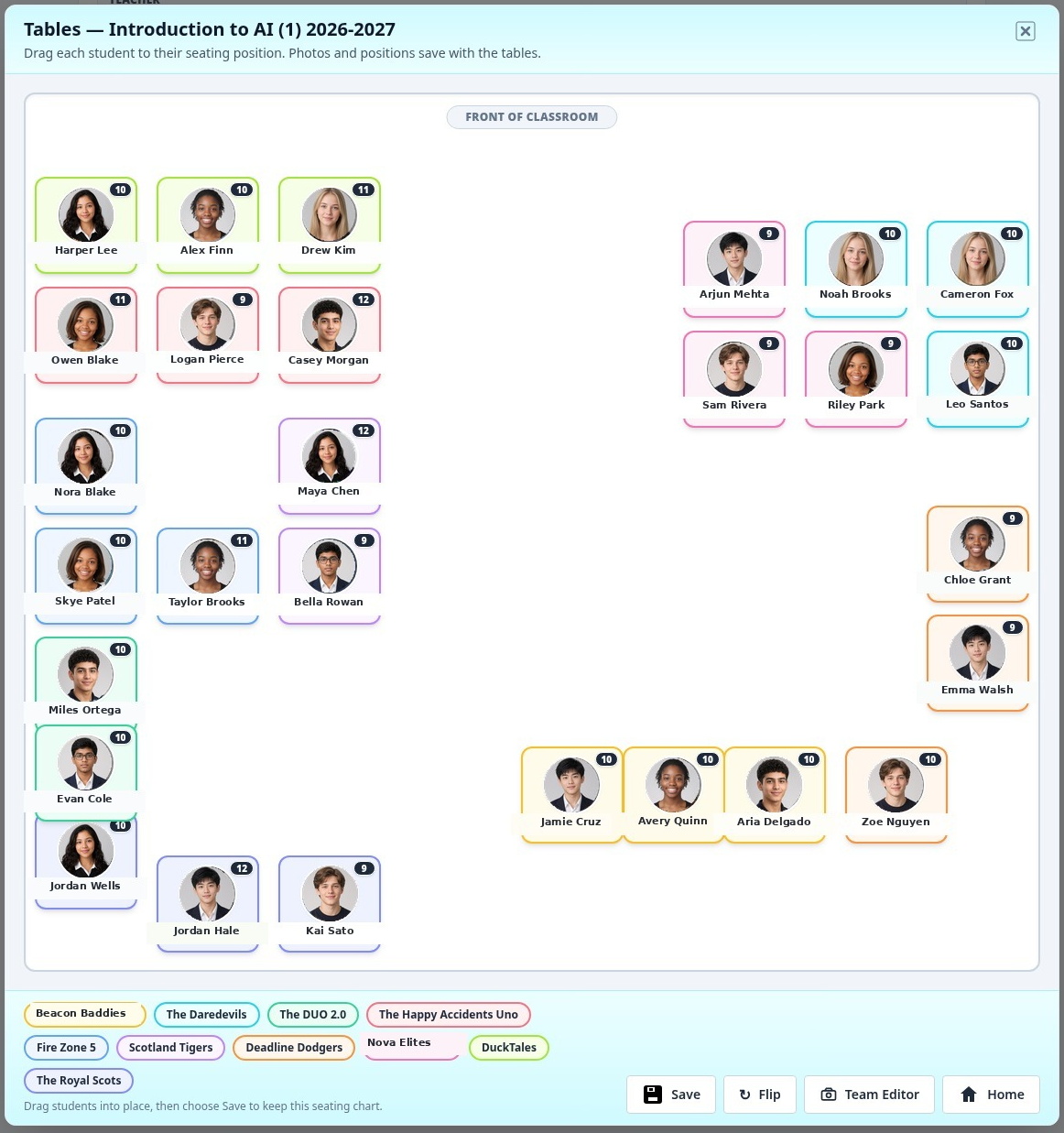
Tables gives teachers a drag-and-drop seating chart, color-coded by team and saved per class.
Drag students into place
Student photo or initials tiles are colored by team and can be dragged into any seating position. Positions are saved to the class, and any student not yet placed starts out in an automatic grid layout.
A front-of-room marker, and Flip
A Front of Classroom marker keeps orientation clear, and a Flip control rotates the whole layout 180 degrees — useful when checking the chart from the doorway instead of the front — while every name and photo stays upright.
Shared team work, built on Surveys/Tasks and Teams
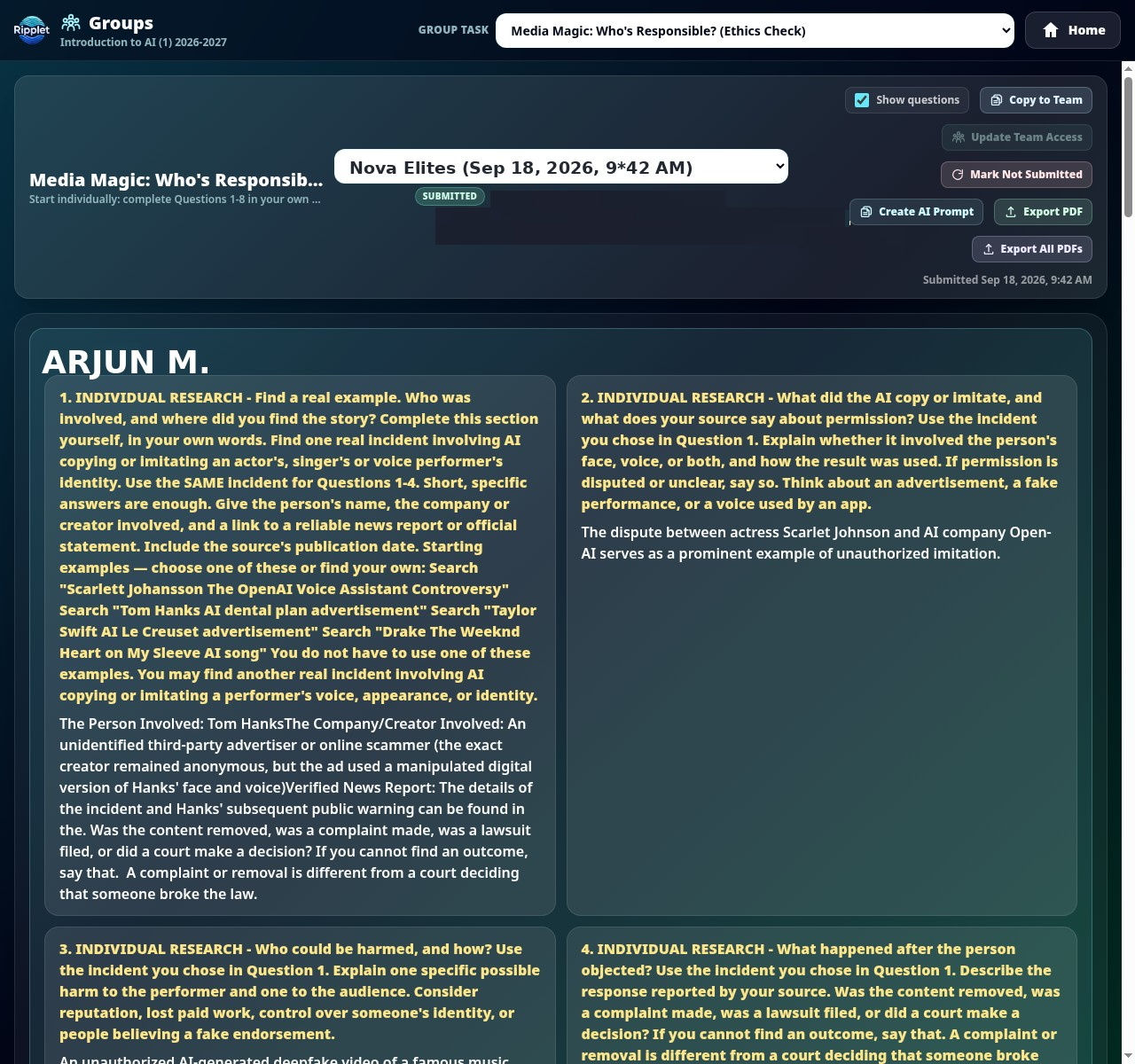
Any Survey/Task can be assigned to a team instead of an individual student. Groups is where a team finds, works on, and reviews that shared task together.
Shared, Individual, or Mixed
Teachers choose how a team task is shared: Shared gives the whole team one collaborative response, Individual keeps a private response per member, and Mixed lets a teacher set sharing question by question.
Teammates edit the same answer together
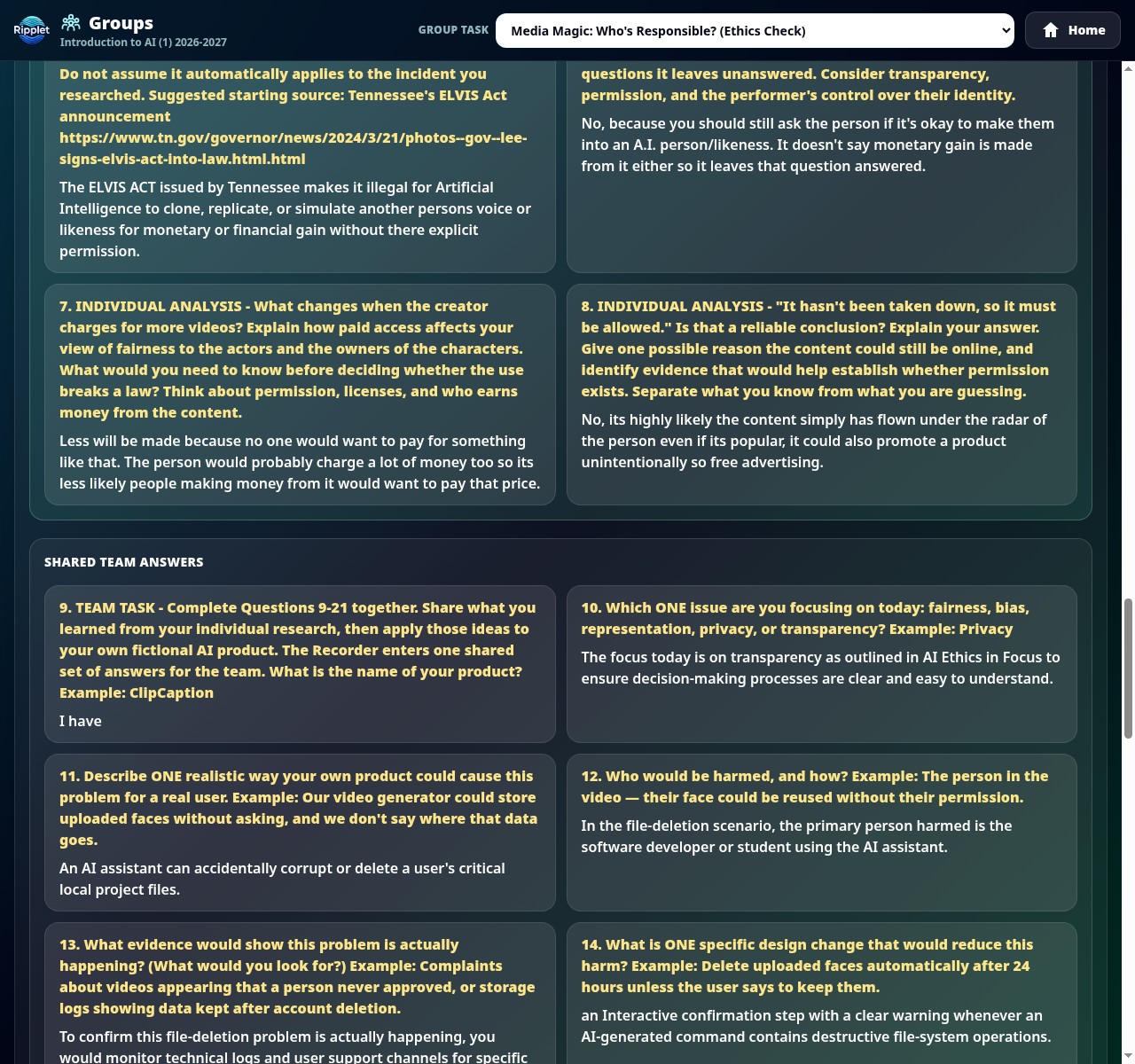
On shared questions, teammates see each other's answers update live, and a simple write-lock lets one student "take control" of a question at a time so teammates aren't typing over each other.
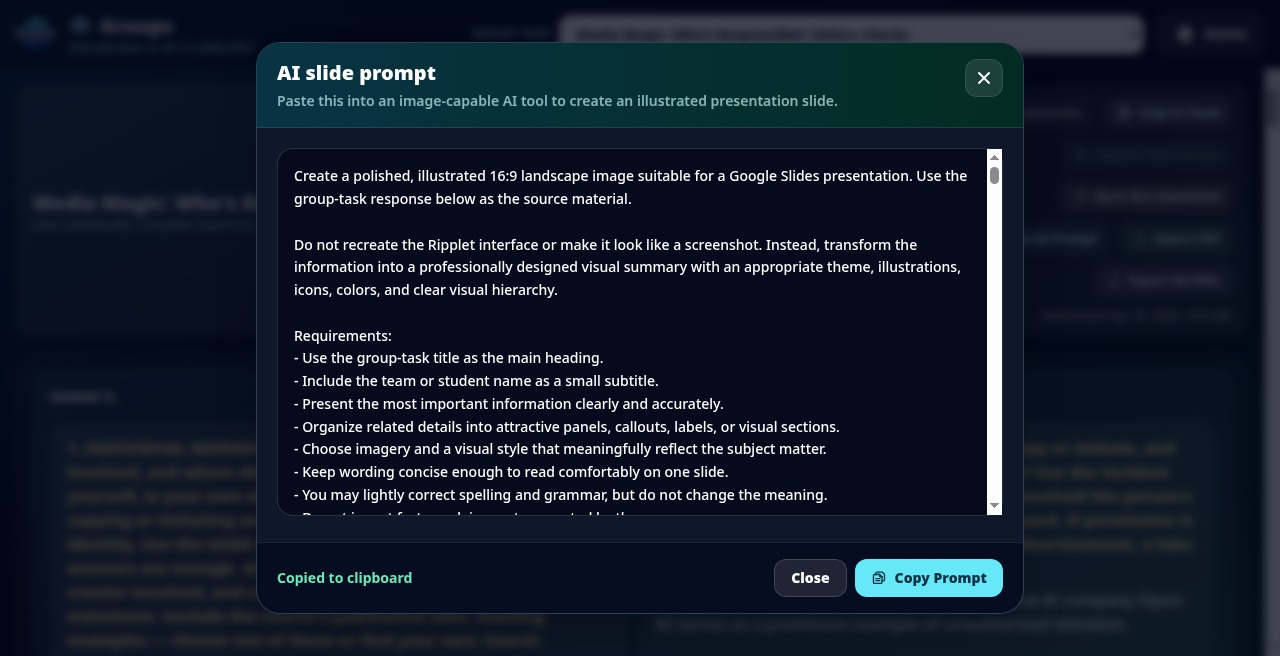
Attachments, export, and an AI slide prompt
Group responses support image, video, audio, and PDF attachments, export to PDF, and a one-click AI slide prompt that turns the team's answers into a ready-to-use presentation prompt.
Share study guides, rubrics, and handouts with the class
Materials is where teachers post the files students need, such as study guides, rubrics, handouts, slides, spreadsheets, images, video, and audio, and students open them without leaving Ripplet.
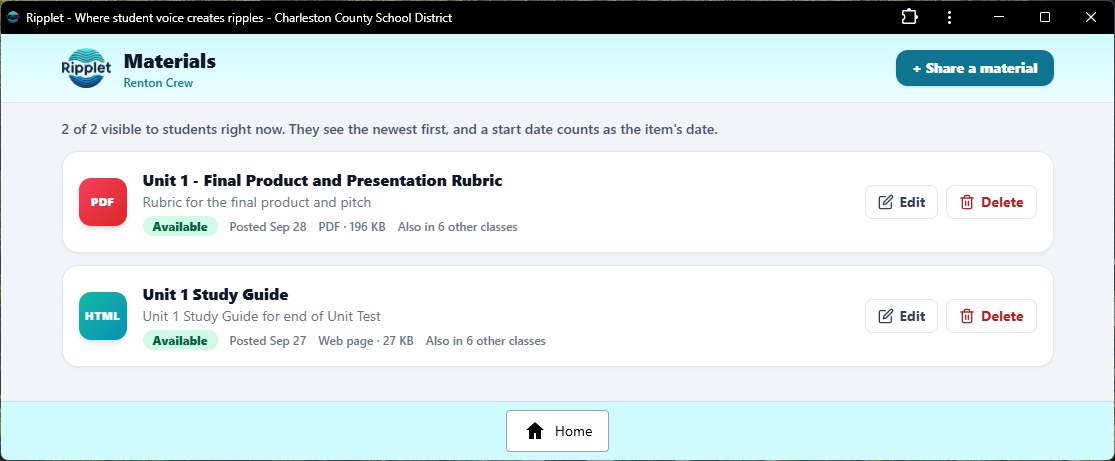
Post once, share with every section
Each material gets a title and optional description, and can be available now, scheduled for a date range, or saved as a draft. One upload can be shared with several classes at once, so a teacher with multiple sections of the same course posts a file once and edits it in one place.
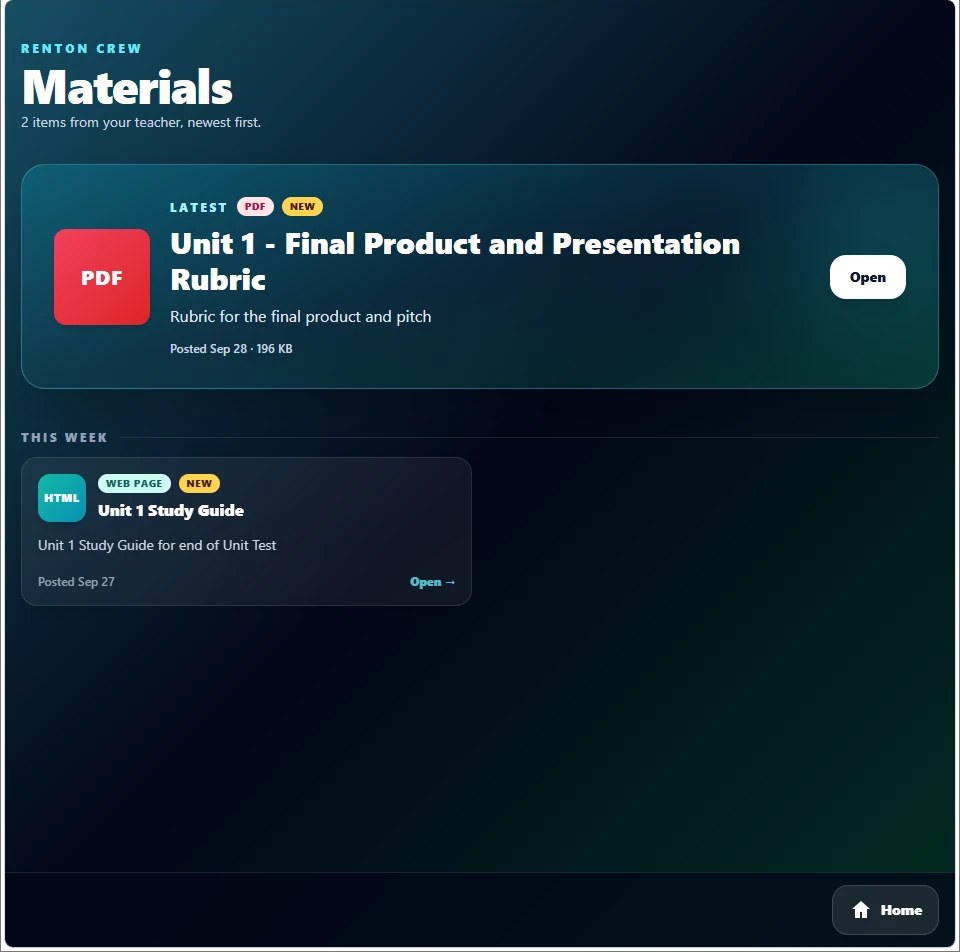
Newest first, opened right in Ripplet
Students see the latest item featured at the top and everything else newest first, with new items flagged. PDFs, web pages, images, video, audio, and text open right inside Ripplet, and a Download button lets students keep a copy.
Build a custom self-assessment and score it automatically
Profiles lets a teacher write a Likert-style questionnaire, map each question to weighted outcomes, and get a scored result for every student who takes it.
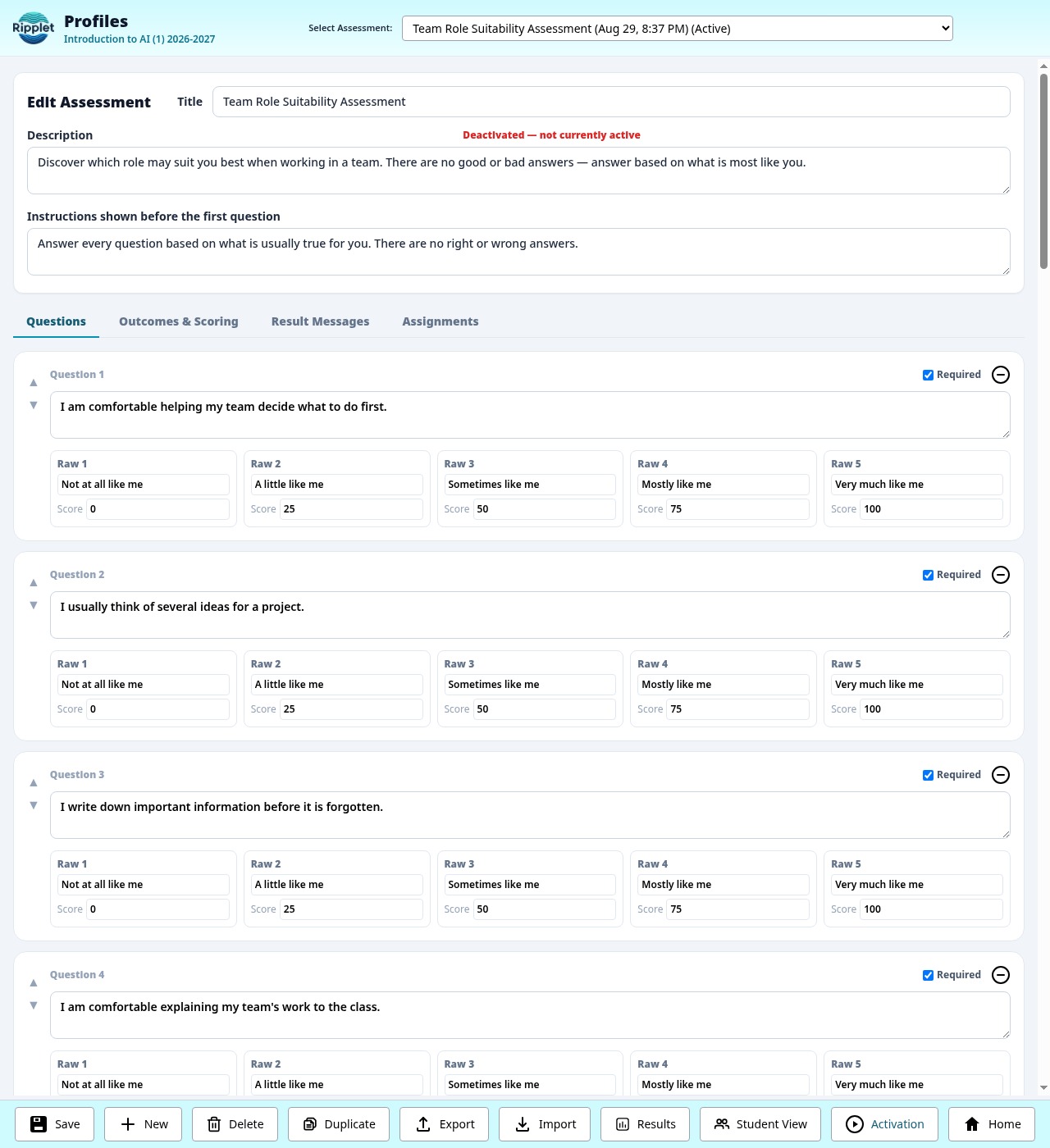
Write questions, define outcomes, set bands
Teachers write 5-point Likert questions ("Not at all like me" to "Very much like me"), then define outcomes — team roles, learning preferences, interest areas, or anything else — and choose which questions count toward each one. Score bands turn each student's raw percentage into a plain-English result.
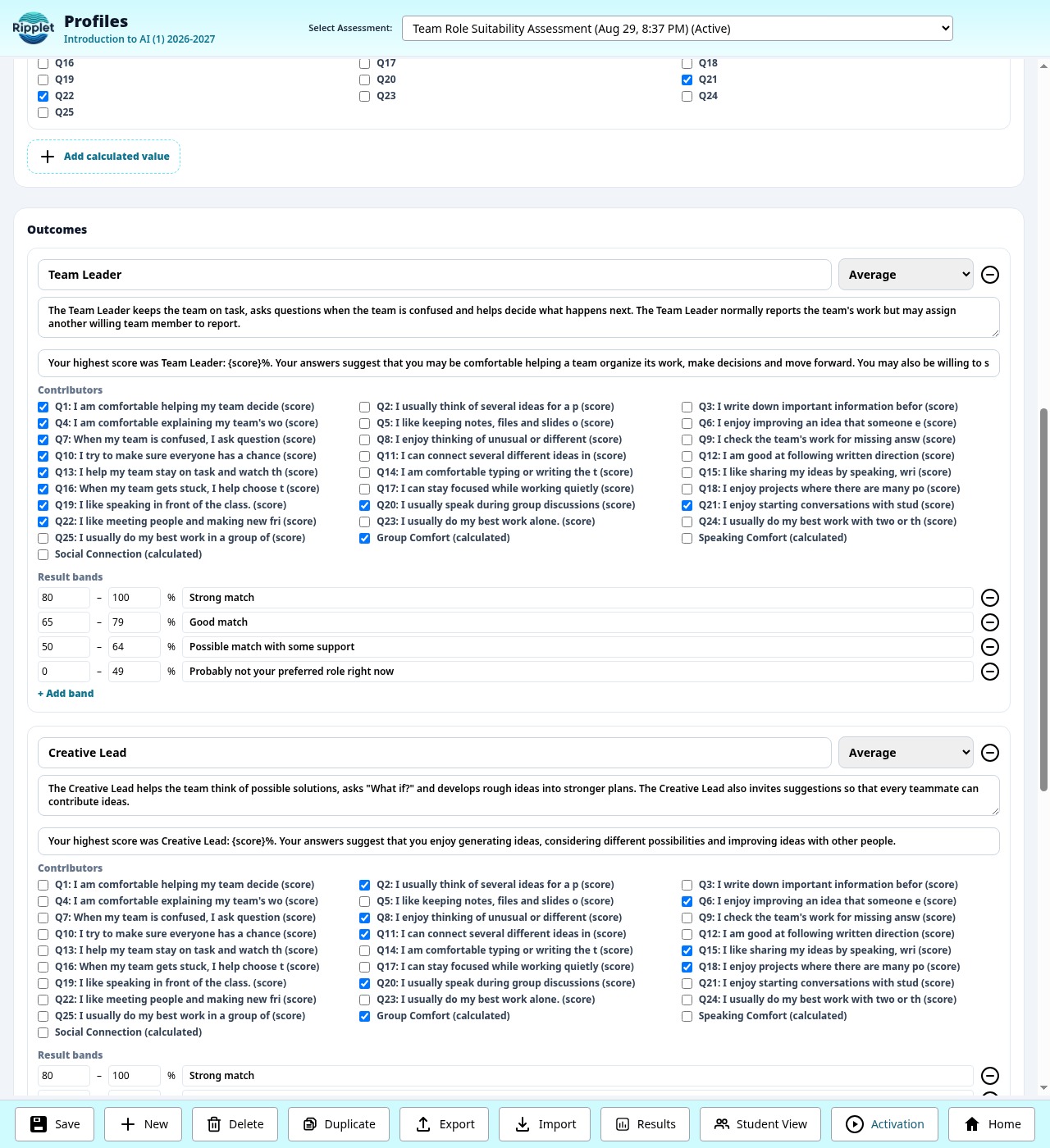
Comes with a Team Role Suitability profile
Ripplet ships with a ready-to-use example: a 25-question Team Role Suitability profile that scores every student against roles like organizer, idea-generator, and presenter, so results are ready the moment Teams are being built.
Quick tools that run on today's roster
Randomizer and Timer sit here because they run directly off the same daily roster and attendance state as the rest of Ripplet Classroom.
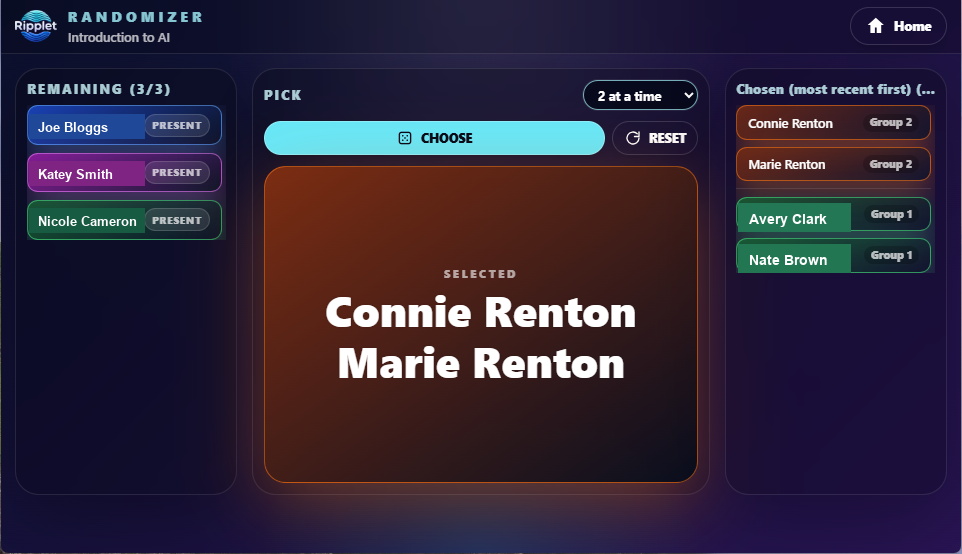
Class Randomizer
Fair, visible student or group selection using the approved class roster, with daily present/absent controls, active student broadcasts, and reset behavior that keeps attendance status intact.
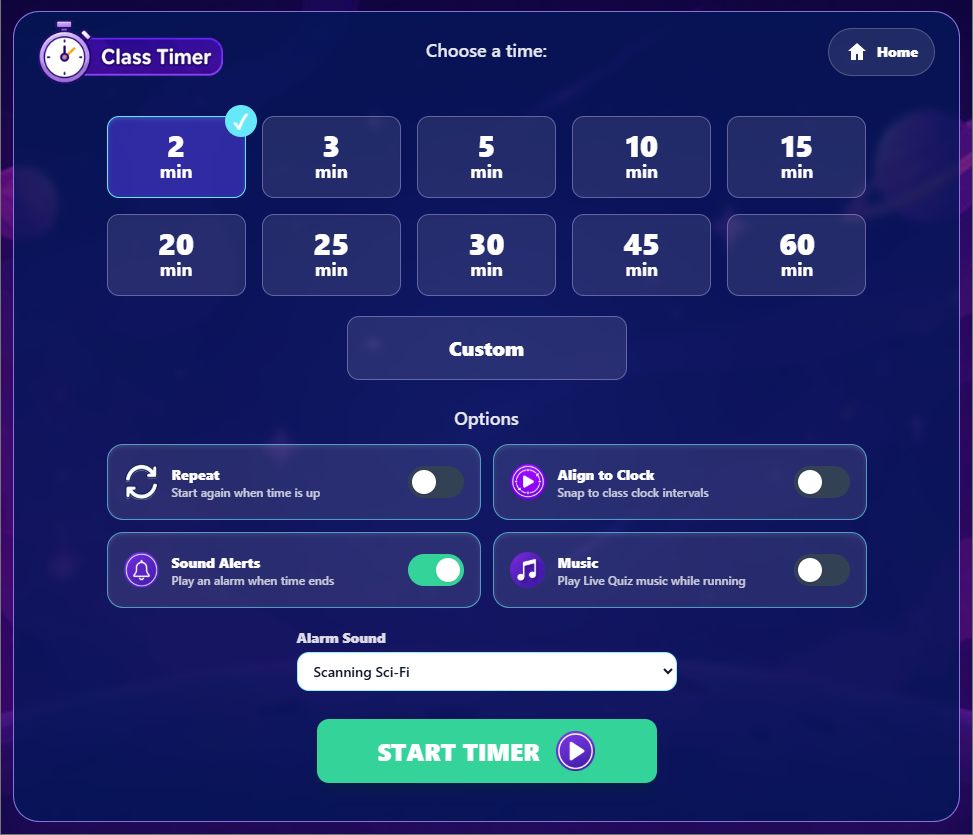
Class Timer
A teacher-only classroom countdown for work blocks, transitions, tests, tidy-up time, and other routines where students need a clear shared timer.