
Your Word Cloud, Quick Poll, and Live Quiz, live, inside the deck you already present from.
This is the reason RippleDeck exists: a Word Cloud, Quick Poll, or full Live Quiz can be dropped in as its own slide, right where a teacher wants it in the flow of a lesson, so students respond without the teacher ever leaving the presentation. RippleDeck isn't a slide designer — it doesn't build slides for you. It's an import tool: bring in images (including AI-generated slide art, which plenty of teachers are already using), or import a PDF export of an old PowerPoint or Google Slides deck wholesale, then layer live interaction on top and present it to a class.
A Word Cloud, Quick Poll, or Live Quiz slide, exactly where the lesson needs it
This is the core of the tool. Instead of pausing a presentation to open Quick Poll, Word Cloud, or Live Quiz separately, a teacher drops one in as a slide, in sequence with everything else. When the deck reaches that slide, it's live for the class — same as running it standalone, just without the detour.
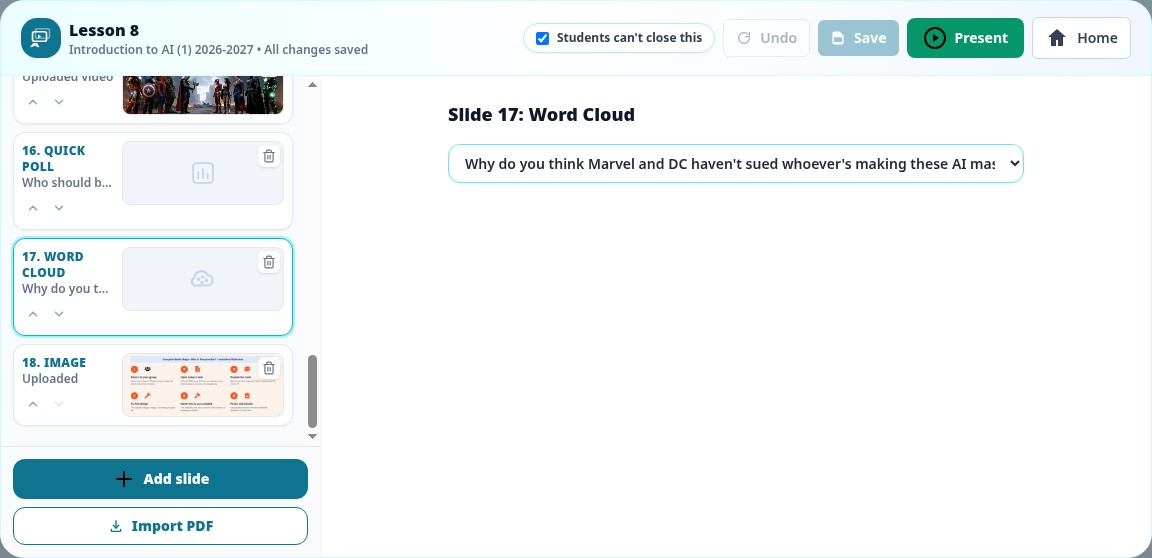
Word Cloud and Quick Poll as slide types
Either tool can be added as its own slide, right in the deck's slide list, alongside images, video, and imported pages. It's built and configured the same way as running it on its own — this just decides when it appears.
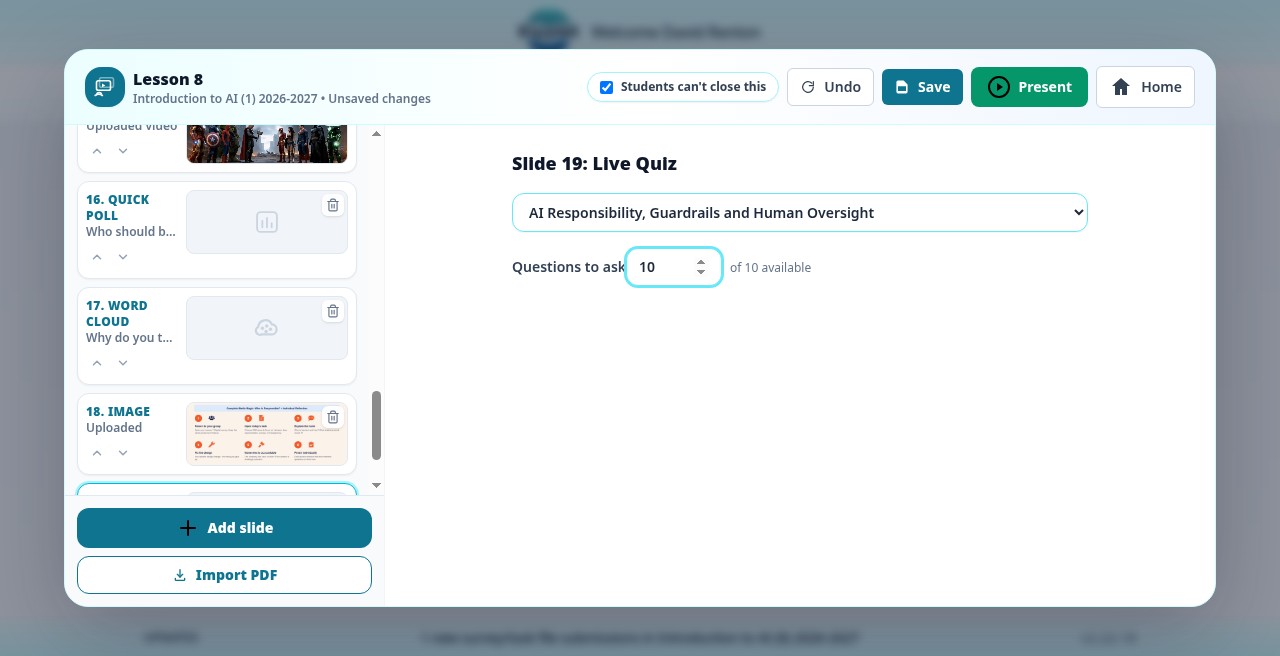
A full Live Quiz as a slide
Pick any Live Quiz already built for that class and how many questions to ask, and it becomes a slide in the deck. When the deck reaches it, students auto-join the lobby — no separate join step — and moving to other slides and back doesn't reset the game in progress.
No leaving the presentation
Reaching an interactive slide makes it live for the class immediately. Students respond, the teacher sees it come in, and the deck moves on — no closing the presentation, opening a separate tool, and finding your place again.
An import tool, not a slide designer
RippleDeck doesn't build slides for you — there's no layout canvas or design step. It's built around bringing in slides that already exist, from wherever a teacher already makes them.
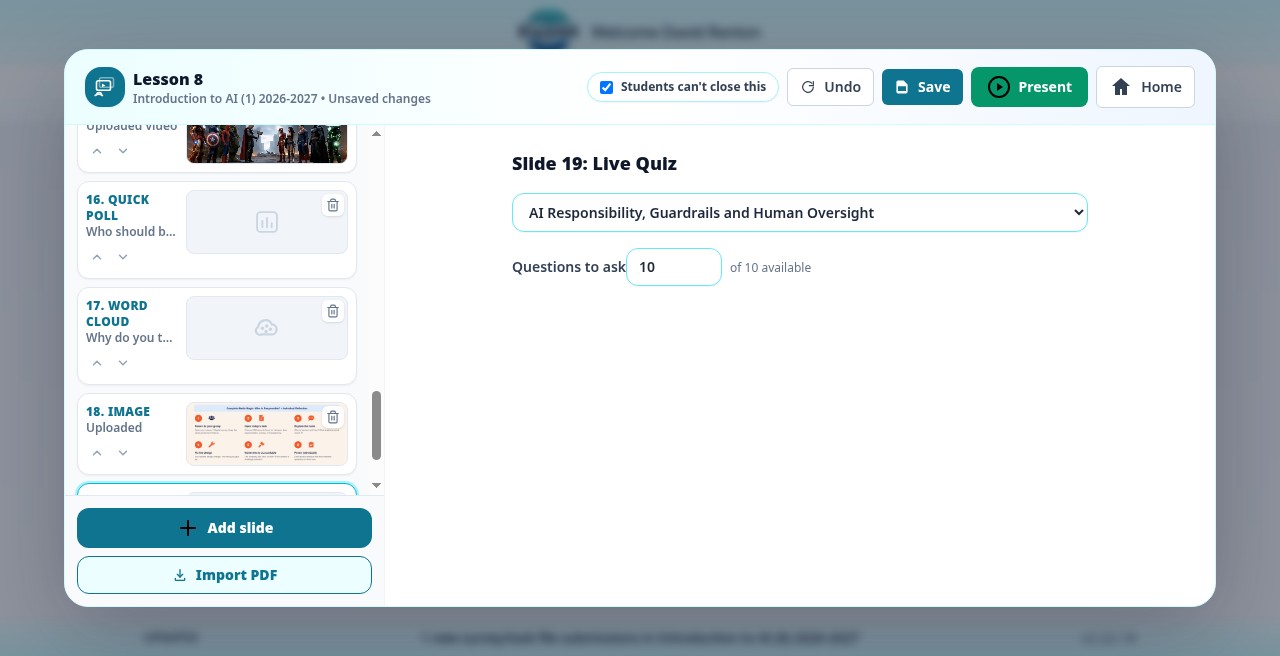
Import PDF
Export an old PowerPoint, Google Slides, or Keynote presentation as a PDF, and Import PDF turns every page into a slide in one step — the whole deck at once, not a folder of images added one by one.
Including AI-generated slide art
Add individual images as slides directly. With more teachers generating slide art with AI rather than designing it by hand, this is often now the faster path in than building a deck the traditional way.
GIFs, video, and audio
Add GIF and audio slides directly, and video either as an uploaded file or a YouTube or Vimeo link, embedded right in the deck.
Every deck a teacher owns, in one place
RippleDeck opens to a personal library of every deck a teacher has built, across all their classes.
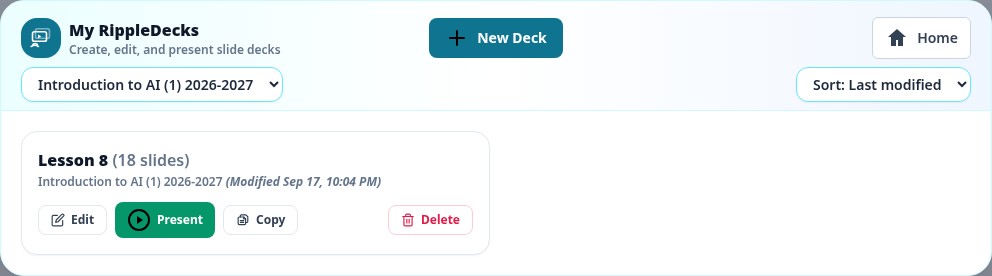
Filter, sort, and reuse
Decks can be filtered by the class they were built for and sorted by name or by when they were last edited, so a deck built for one class is easy to find and easy to copy into another.
Create, copy, or delete a deck
Teachers can start a new deck from scratch, copy an existing deck as a starting point for a different class or a new year, or delete a deck they no longer need.
Every student's screen follows the deck automatically
Presenting a deck to a class keeps every student's Home Screen in sync with the teacher's current slide in real time.
Simple, projector-friendly controls
Teachers pick a class and start presenting. On-screen buttons or the arrow keys move between slides, and the current slide is written live so the whole class stays on the same page.
No separate join step for students
As soon as a teacher starts presenting to a class, the current slide appears on every student's Home Screen for that class automatically — including any live Word Cloud, Quick Poll, or Live Quiz slide, ready to join or respond.
Pause, resume, or stop on purpose
Leaving the presenter — a tab close, navigating away, anything short of choosing Stop — pauses the presentation rather than losing it, with Resume and End controls waiting back in the library.